
Google Search Console Webmaster Tools: The Ultimate 2025 Guide for Beginners & Professionals

6
Google Search Console (GSC), also known historically as Google Webmaster Tools, is one of the most important platforms for anyone who owns, manages, or optimizes a website.
Whether you’re an SEO expert, blogger, business owner, or digital marketer, Google Search Console tells you exactly how Google sees your website — and that is the secret to ranking higher.
In this complete 2025 guide, you’ll learn:
- What GSC is
- Why it is essential
- How to set it up
- How to read every report
- How to fix ranking issues
- How to increase traffic using GSC
- Pro-level SEO tricks using actual GSC data
Let’s begin.
What Is Google Search Console?
Google Search Console (GSC) is a free tool provided by Google that helps website owners:
- Monitor website performance
- Identify ranking keywords
- Track impressions and clicks
- Fix indexing issues
- Improve mobile usability
- Submit sitemaps
- Analyze backlinks
- Detect security issues
- Understand technical SEO
In simple words:
GSC shows you how Google views your site → you use that information to improve rankings.
Read Also: What Are Search Engines Websites? How They Work & Why They Matter in 2025
Why Google Search Console Matters in 2025
Search has changed — AI summaries, SGE, zero-click SERPs, mobile-first ranking, and deep content analysis.
GSC helps you survive and win these changes by:
✔ Showing REAL keyword data (not estimates)
Tools like Ahrefs/Semrush show estimates.
But GSC shows keywords directly pulled from Google searches.
✔ Revealing pages that are dropping in ranking
You can quickly detect problems before traffic collapses.
✔ Helping Google index your new pages
Submitting URLs instantly helps you appear faster in SERPs.
✔ Fixing errors that harm rankings
Coverage errors, crawl anomalies, duplicate issues, and more.
✔ Tracking Core Web Vitals
Google’s user experience metrics directly tied to rankings.
How to Set Up Google Search Console (Step-by-Step)
6
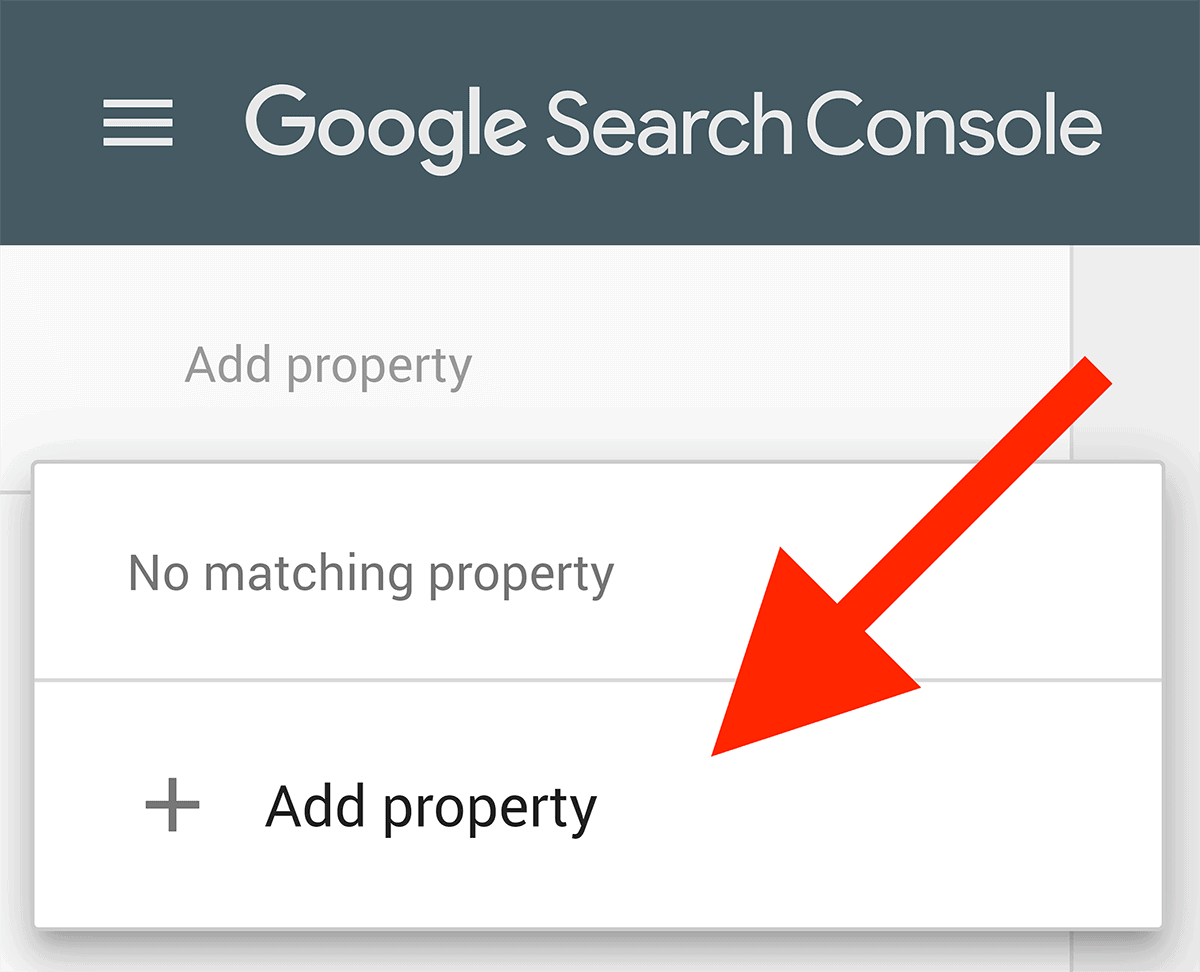
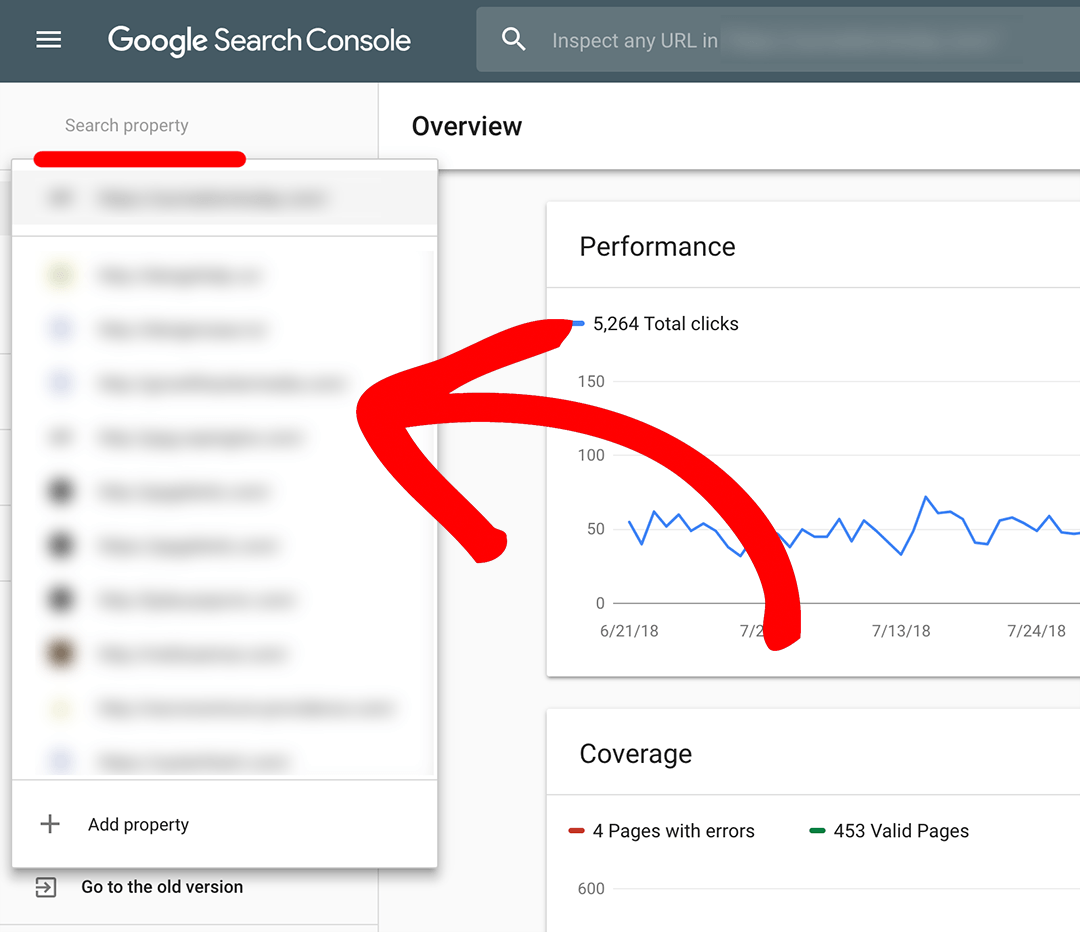
Step 1: Visit Google Search Console
Go to: https://search.google.com/search-console
Click “Add Property.”
Step 2: Choose a Property Type
You’ll see two options:
1️⃣ Domain Property
Tracks everything (www, non-www, http, https).
2️⃣ URL Prefix Property
Tracks only one specific URL format.
Best choice: Domain property — complete tracking.
Step 3: Verify Ownership
Verification methods:
- DNS TXT Record (Fastest, most recommended)
- HTML file upload
- HTML meta tag
- Google Analytics
- Google Tag Manager
After verification → your dashboard opens.
Google Search Console Dashboard Overview
Let’s break down every major report.
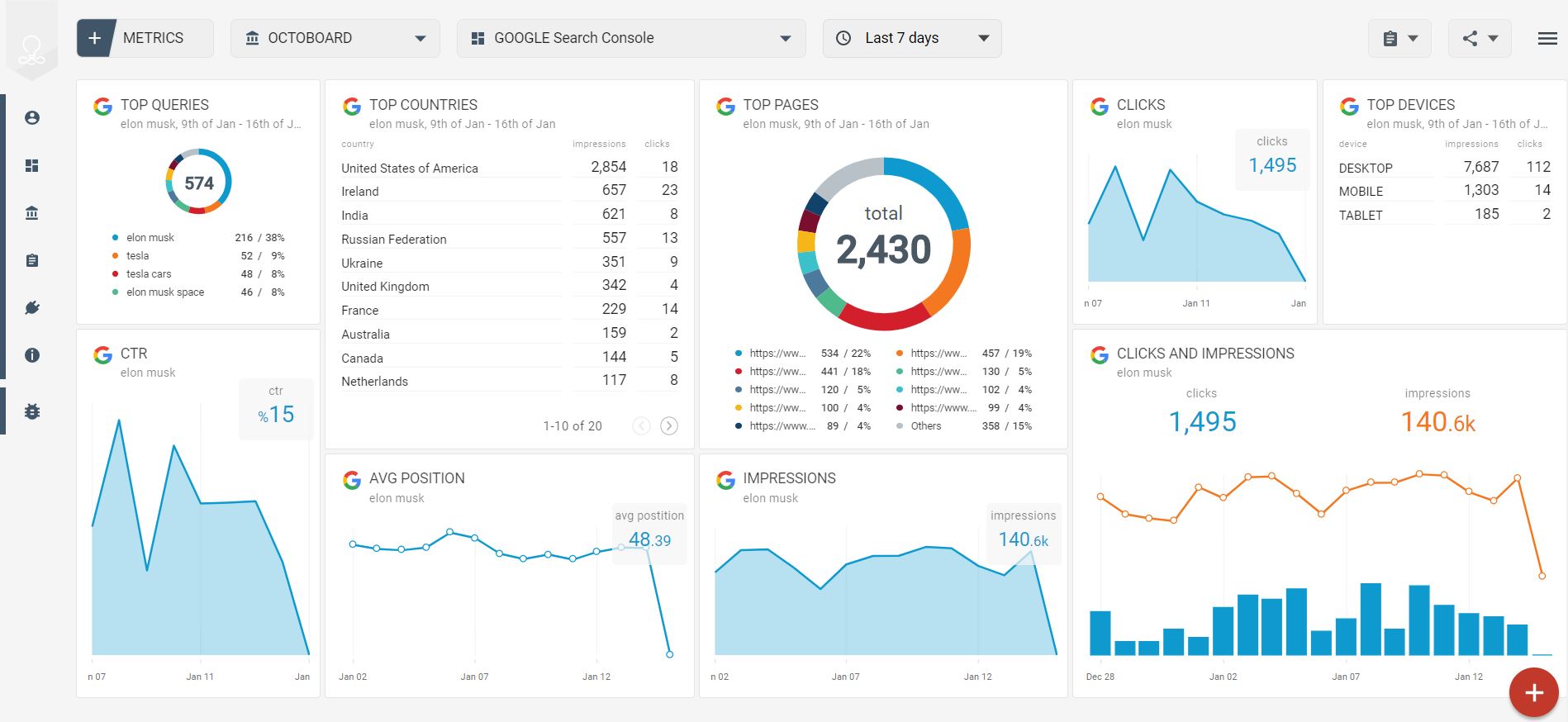
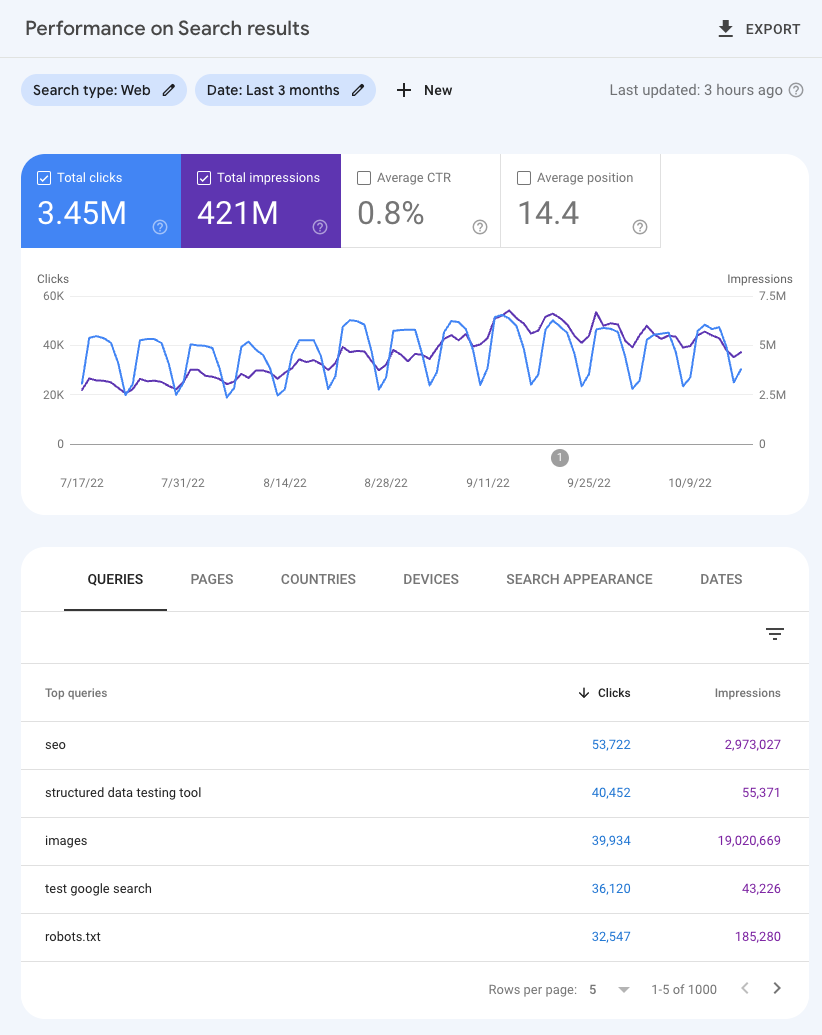
1. Performance Report — Your Most Important SEO Data

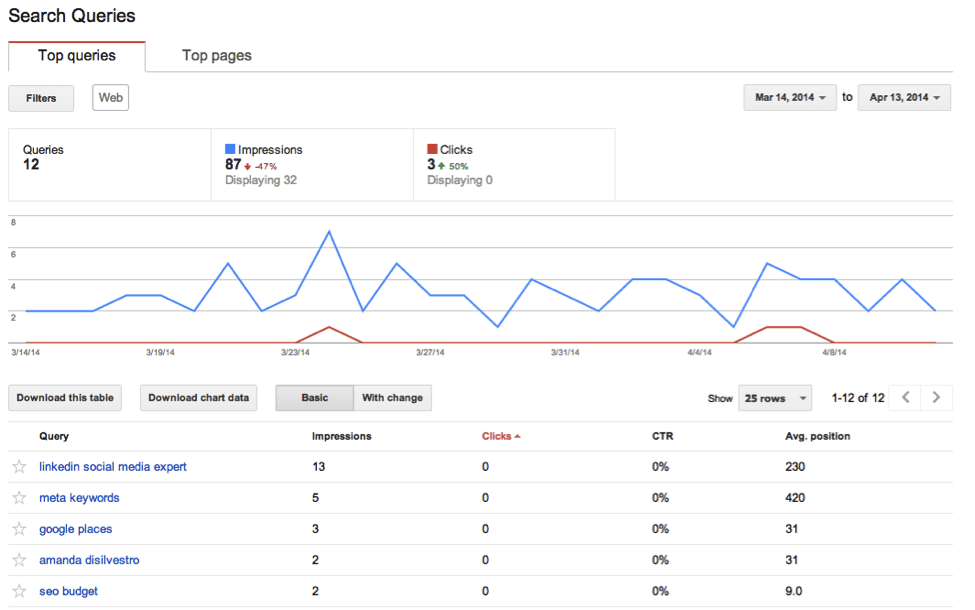
4
The Performance tab shows:
✔ Total Clicks
How many clicks you got from Google.
✔ Total Impressions
How many times your website appeared in searches.
✔ Average CTR
Percentage of people who clicked after seeing you.
✔ Average Position
Your ranking position across all queries.
✔ Your Actual Ranking Keywords
The REAL search terms driving traffic.
Table: Example of What You See in Performance Report
| Query | Clicks | Impressions | CTR | Average Position |
|---|---|---|---|---|
| google search console guide | 214 | 12,800 | 1.7% | 8.2 |
| submit sitemap google | 189 | 9,300 | 2.1% | 5.4 |
| fix indexing error google | 121 | 6,100 | 1.9% | 7.0 |
This data is GOLD for SEO.
2. URL Inspection Tool — See Exactly What Google Sees
You paste a URL → Google shows:
- If it’s indexed
- When it was last crawled
- What mobile version Google sees
- Any issues preventing ranking
You can also click “Request Indexing” to speed up crawling.
3. Pages (Indexing/ Coverage Report)
One of the most important reports.
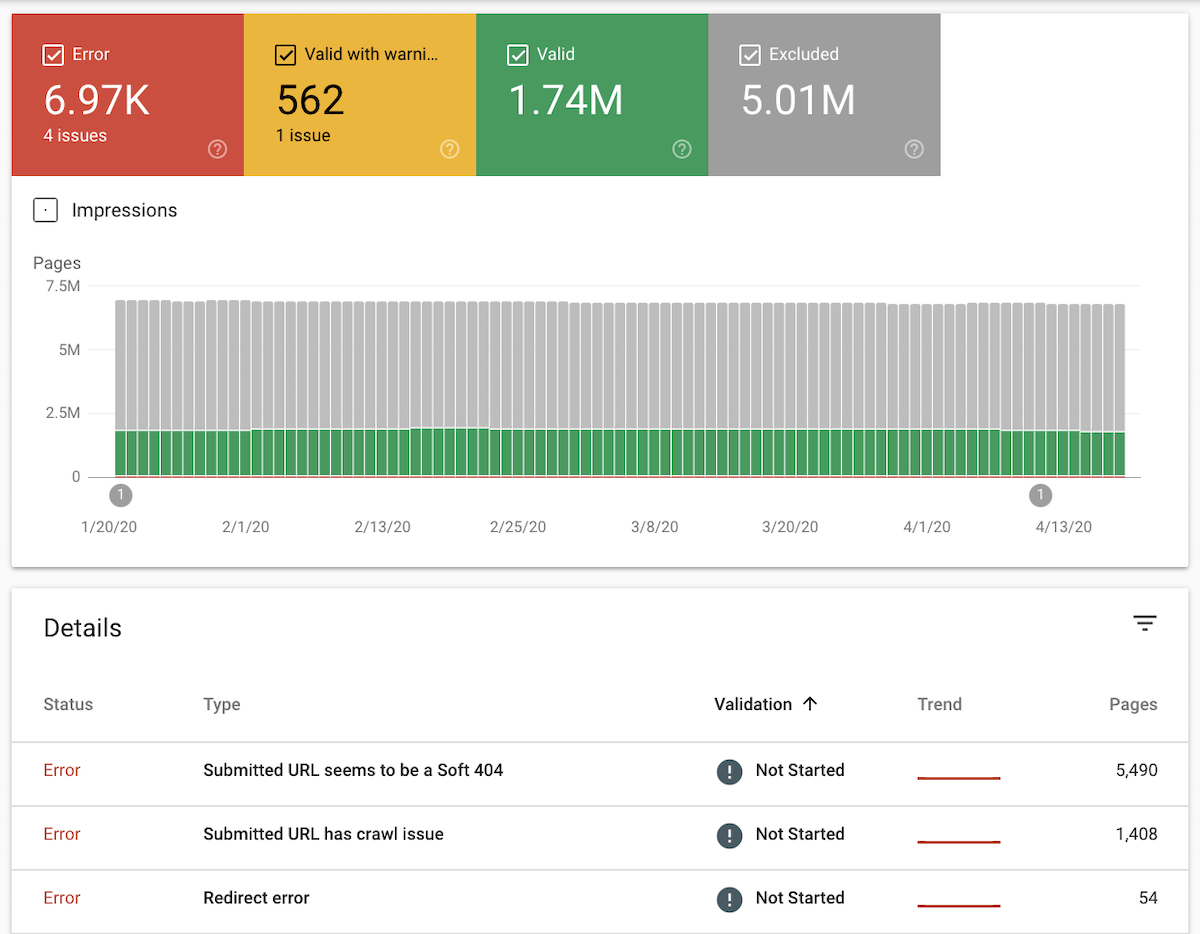
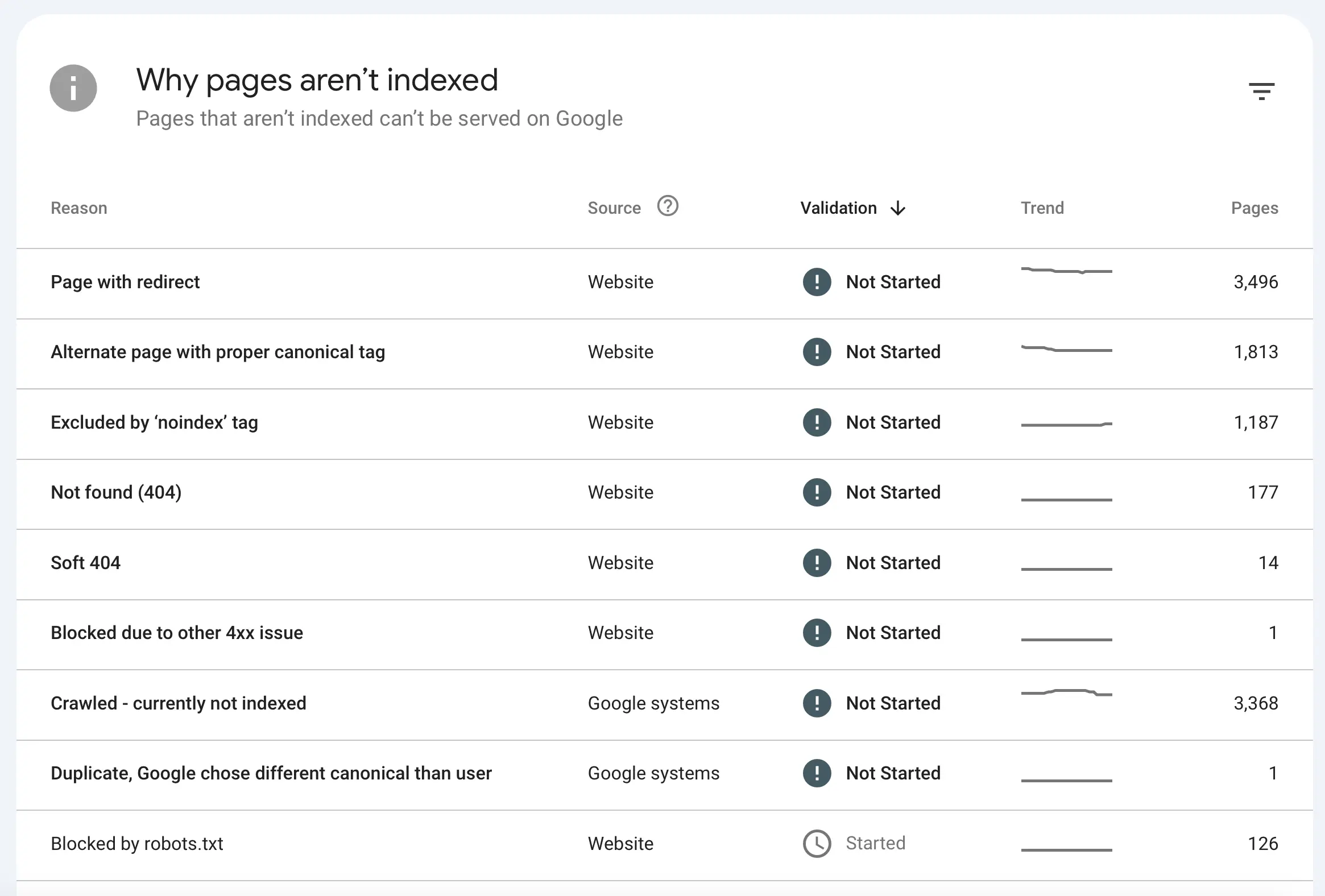
4
It shows:
✔ Indexed pages
Pages live and visible in Google.
✔ Not indexed pages
Pages ignored by Google.
✔ Reasons why pages aren’t indexed:
- Crawled — not indexed
- Discovered — not indexed
- Duplicate without canonical
- Alternate page with proper canonical
- Soft 404
- Blocked by robots.txt
Fixing Indexing Issues
To fix:
- Improve content quality
- Add internal linking
- Submit the URL for indexing
- Fix thin or duplicate content
- Remove noindex or robots.txt blocks
4. Sitemaps Section
Submit your sitemap here:
https://yourdomain.com/sitemap.xml
Benefits:
- Faster indexing
- Better crawling
- Cleaner understanding of site structure
5. Mobile Usability
Shows issues such as:
- Content wider than screen
- Text too small
- Clickable elements too close
Fix these to improve mobile rankings.
6. Core Web Vitals
Core Web Vitals measure:
- LCP – Loading speed
- FID/INP – Interaction delay
- CLS – Visual layout stability
Improving these boosts SEO.
7. Links Report
Shows:
- Total backlinks
- Top linking pages
- Top linking sites
- Internal link structure
Use this to strengthen your authority.
8. Security & Manual Actions
If your site:
- Has malware
- Violates Google policies
- Builds spammy backlinks
- Uses black-hat SEO
→ Google will notify you here.
Getting a manual penalty can destroy rankings.
Google Search Console vs Google Analytics (Difference Table)
| Feature | Google Search Console | Google Analytics |
|---|---|---|
| Source | Google Search | All traffic sources |
| Shows Rankings | Yes | No |
| Shows Organic Keywords | Yes | Limited |
| Tracks Clicks/Impressions | Yes | No |
| Tracks User Behavior | No | Yes |
| Detects Errors | Yes | No |
| Shows Backlinks | Yes | No |
Both tools complement each other.
Advanced SEO Techniques Using Google Search Console
Now let’s go deeper — the PRO-level features.
1. Find Keywords You Are Already Ranking For (Easy Traffic Boost)
Go to:
Performance → Queries
Sort by: Impressions (High) + Clicks (Low)
These are keywords you are showing up for but NOT ranking high.
Optimize the content → instant traffic improvement.
2. Identify Pages Dropping in Ranking
Go to:
Performance → Date: Compare (last 28 days vs previous)
You will see:
- Which keywords dropped
- Which pages lost visibility
Fixing these quickly prevents traffic loss.
3. Improve CTR with Better Titles
In Performance → Pages:
Sort by High impressions + low CTR
These pages need better:
- Titles
- Meta descriptions
- Featured image
- Structured data
CTR improvements directly influence ranking.
4. Fix Crawl Budget Waste
Use Coverage + Pages reports to identify:
- Duplicate pages
- Tag, category, filter pages
- Low-quality URLs
- Parameter URLs
Add canonical tags or noindex where required.
5. Build a Winning Internal Linking Structure
Links → Internal Links report helps you:
- Identify orphan pages
- Add links from high-authority pages
- Boost ranking power
Internal linking is one of the fastest SEO wins.
6. Submit Important URLs for Faster Indexing
Perfect for:
- New blogs
- Updated pages
- Seasonal pages
- Product launches
Use URL Inspection → Request Index.
Common Google Search Console Errors & Fixes (Quick Table)
| Error | Meaning | Fix |
|---|---|---|
| Crawled – not indexed | Google didn’t find enough value | Improve content & internal links |
| Duplicate without canonical | Same content appears twice | Add canonical tags |
| Soft 404 | Page looks empty to Google | Improve content or redirect |
| Blocked by robots.txt | Google blocked | Remove disallow rule |
| Server error (5xx) | Hosting/server issue | Fix server, reduce load |
| Mobile usability issues | Poor mobile experience | Improve layout/fonts/buttons |
Frequently Asked Questions
1. Is Google Search Console free?
Yes, 100% free.
2. Does GSC improve your ranking automatically?
No — but it shows WHY you aren’t ranking and HOW to fix it.
3. How long does indexing take?
Anywhere between 24 hours to 2–3 days with manual request indexing.
4. Can I see backlinks in GSC?
Yes — in the Links report.
5. What is the difference between impressions and clicks?
Impression = You appeared in search.
Click = User clicked your site.
6. Does Google Search Console show ALL keywords?
Yes — but some low-volume queries may be hidden for privacy.
Conclusion
Google Search Console (formerly Webmaster Tools) is the most powerful, free SEO tool for understanding your website’s relationship with Google.
It shows:
- How Google crawls your site
- What keywords you rank for
- What errors are hurting your rankings
- Which pages need improvement
- How to boost your search visibility
If you consistently analyze your GSC data and make improvements, your organic traffic will grow steadily.
Read Also: Google Search Console Complete Guide For SEO

Soocialhaus is an online media publication dedicated to reporting on the Advertising and Marketing Landscape across Internet in the Social Media World.